BETT 2010

      No Comments on BETT 2010

I was lucky enough to be given a day off to attend the BETT Exhibition again this year. I really enjoy going to this every year as it gives a real insight into the changing world of technology and allows you the time to investigate how new software can be used to enhance teaching and learning.

As usual a noticeable highlight was the Microsoft stand with lots of great talks running throughout the day. Microsoft Office 2010 looks particularly good, all applications (including Publisher) now have the ribbon-style menu layout and have features incorporated for collaborative working. One such feature that was demonstrated was using PowerPoint. A presentation can be delivered remotely by sharing the presentation online and giving users an access code to view the presentation while it is being delivered in another location. The Office 2010 Beta can be downloaded from here.

One interesting product that was demonstrated by one of the speakers was OneNote. With this students can set up a “folder” of notes in order to work on collaborative projects. As a teacher you can view each of your students “folders” and notes and leave comments and feedback on them. It looks like a great tool and certainly one I would like to explore further.

Another fantastic product being released soon by Microsoft is SharePoint 2010. We already use SharePoint 2007 in school as our VLE and although it is very good the new version promises a whole host of new features that make everything a whole lot simpler. For example, pages act more like wiki pages now and can be edited very quickly using the familiar ribbon-style layout from the rest of the Office applications. One particularly useful feature is that when opening Office documents from within SharePoint it actually runs a version of the application within the browser, meaning students who do not have Office at home can still use the features of the software from within their web browser. Fantastic!

Semblio is a product Microsoft have developed to allow teachers to create resources by bringing together lots of sources from different places, it appears to run as an addition to Visual Studio. I plan to look at this in the future and will hopefully post a blog entry once I’ve explored all of its features.

The final point I shall talk about regarding Microsoft is their large array of free software for teachers and students. As a teacher if you sign your school up to DreamSpark your students are given access to software they can then download at home, particularly useful additions being Visual Studio, Expression Studio and XNA Games Studio. I was given a demonstration of Games Studio, running form within Visual Studio, and it looks like it has a lot of potential, using the C# programming language it allows users to create games for Windows, Xbox and Zune. I plan to investigate this further at a later date.

Microsoft aside, there were so many stands of information to look at, several robotics retailers which I always find interesting (but I spoke about these last year so won’t repeat myself!). One new addition to the world of games programming that seems to have potential is Games Factory  by Clickteam. It allows users to build games in minutes using a huge library of graphics and an “events”, “conditions” and “actions” style of programming. The only downside to this is that it is £599 for a site licence with an added cost of £300 to be able to export to Flash format. The software does look very good but with Microsoft’s imminent and free release of Kodu Game Lab coming up I’m not sure I could justify the cost.

CaricatureOCR’s contribution to the exhibition was a free caricature for their visitors, this is how mine came out! Not too flattering but no less than I expected!
DellRobot

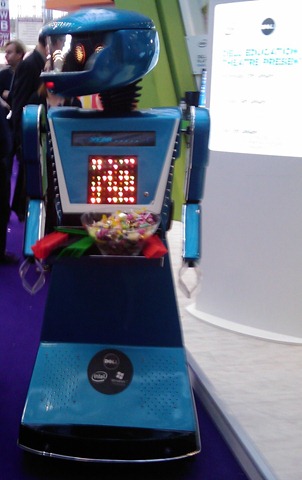
Finally, no trip to BETT is complete without a visit to the Dell stand to see the Dell robot (and receive sweets and other goodies!). I didn’t seem to find too many freebies around  this year, compared to previous years, but then I guess we are coming out of a recession after all. I did, at least, collect a few pens and stress-balls!

Well, that’s about it for now regarding BETT, please add comments to contribute on anything I may have missed.
ICT Seminar – OCR Nationals Level 3 for Beginners

      No Comments on ICT Seminar – OCR Nationals Level 3 for Beginners

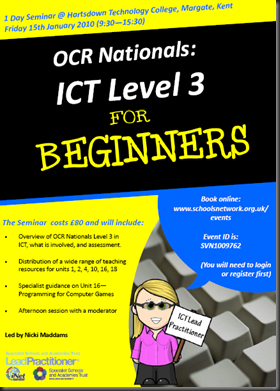
seminarOn Friday 15th January I will be hosting another ICT seminar. This time it will based on OCR Nationals Level 3 and costs just £80. If anyone has started teaching OCR Nationals Level 3 or is thinking about it come along, as the seminar will include the following:

  • Overview of OCR Nationals Level 3 in ICT, what is involved, and assessment
  • Distribution of a wide range of teaching resources for units 1, 2, 4, 10, 16, 18
  • Specialist guidance on Unit 16—Programming for Computer Games
  • Afternoon session with a moderator

Click here to view the flyer.

Booking is made through Specialist Schools and Academies Trust here. Alternatively bookings can be made by fax using this form.

I look forward to meeting some of you there!

Avatars

      No Comments on Avatars

comicstrip

Recently I have been looking at different tools for creating avatars. Here are my findings, I’ve labelled each one with a number and below the pictures you can see more details on where to find that particular avatar tool. Have fun!

GroupWithFrame


(1) South Park

This is quite a simple and very basic avatar maker, keeping with the South Park theme. It does not give you a huge range of features to choose from, I would have liked more choice in hair and glasses, but apart from that not a bad tool. It’s a Flash-based creator so you will need to take a screenshot to save a copy of your creation.

(2) Mii

I found this to be an excellent tool. Very accurate to the Mii creator found on the Nintendo Wii. There are other Mii creators on the Net but none of them compare to this one which even lets you export your creation when you have finished.

(3) Wee World

One of my favourite tools online for creating avatars, it gives you a huge range of features to add to your character. If you create an account and log in you are presented with an even wider choice of appearances with more hair styles, outfits and gadgets to keep you entertained.

(4) Yahoo

Yahoo’s avatar creator boasts a range of different facial expressions which allow for a bit more detail than some of the above mentioned. It also  has a feature that allows you to change the mood at just a click of a button. The only downside to Yahoo is the lack of an export feature which means you are left using the “print screen” button to capture your work. This isn’t a huge problem except the avatar is animated so obviously this is lost in the process.

(5) Doppel Me

Very simple and basic avatar creator. If you want something quick and easy and don’t have a lot of time for lots of additional features Doppel Me is for you! The good feature of this is it actually creates an image file in the process so all you have to do is right click to save your efforts! Easy and would definitely be well suited to younger or low ability students.

(6) Marvel Superhero

Probably a bit on the extreme side when it comes to a simple avatar but I thought I would include it none the less. I would imagine it would be a good tool for encouraging the boys! There is a huge range of “superhero” features to add and you can even name it and export.

(7) Habbo

The Habbo site is mainly aimed at children/teenagers so is probably perfect for students. You have to sign up before you can actually create an avatar and again, no export feature. There is not a great deal of customisation you can use but I quite like the avatars you can create on here as they are quite blocky and unusual looking (maybe it’s just my geeky side coming out here though?)

(8) Manga

I really liked the simplicity of this site and the clean looking avatars it produces. The only point I found a little disappointing was the fact that I could not find a suitable hairstyle that really matched my own (but that’s just me being picky). There is a download feature to this site but you have to give your email address and some personal details so probably easier just to take a screenshot.

(9) The Sims 3 (Link to game website)

Not an online avatar creator but for students who have bought Sims 3 they can create a representation of themselves within the game and save it for later use.

AnimatedLaptop(10) Meez

I was very impressed with Meez. You can create an avatar without logging in  but creating an account gives you a lot more features. There are loads of features to add to your character, which actually looks 3D. If this isn’t impressive enough, you can also animate the character and export both stills and animations (saves as gifs). An example of which is on the right here.

(11) The Simpsons

There are two ways to create a Simpsons avatar, Simpsonize Me and Simpsons Movie.

With Simpsonize Me you can actually import a photo and it will automatically generate a Simpsons character for you which you can then tweek afterwards.

The Simspons Movie website allows you to simply create a Simpsons character from scratch.

(12) Portrait Illustration Maker

This is probably the site I was least impressed with. Although it probably  holds one of the widest selections of parts for you to combine and allows you to download without having to create an account, the pictures it creates are very small which makes them unsuitable for most uses.

(13) Toonlet

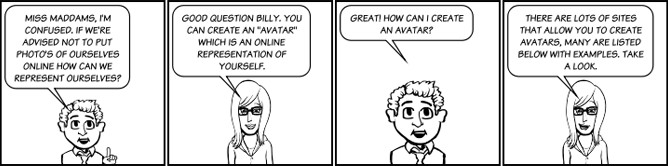
This was the most entertaining avatar maker I found. The actual purpose of the site is to allow you to create comic strips with the characters you create  (like the one at the top of the post). Once you create a character you can save multiple versions of it with different moods ready to use in your comic strips. The actual character creation mode is also probably one of the most detailed I’ve seen. It contains a variety of packs developed by other users containing objects, facial features, hairstyles etc. meaning you can create quite an accurate avatar. The only downside to this is that the pictures are in black and white. I intend to use this tool when I am creating guide sheets for my students. I think it will be a bit more entertaining for them to read if they see a little cartoon version of myself talking to them!

I hope you have enjoyed this whistle-stop tour of avatar creation, with the exception of Sims 3, all of the tools mentioned above are free. It is very difficult for me to say which I found to be the best avatar maker as they all excelled in different areas, it would entirely depend on the type of tool you are looking for.  Have fun making your own avatars. Please comment if you have any suggestions or ideas.

Loving Programming!

      No Comments on Loving Programming!

I love programming and am constantly look at new ways it can be taught in the classroom in a way that engages my students. I use Scratch with my Year 8’s for which I created a scheme of work (available here). I also use Scratch and Visual Basic .NET when teaching my sixth-formers for their game programming unit. After scouring the Net for ideas I have recently discovered a lovely tool called Small Basic which is made by Microsoft.

Small Basic is very simple and straight-forward to use and comes with a fantastic tutorial booklet on the Microsoft website that takes students from a simple “Hello World” text-based program to programming a drawing application, with a bit of turtle graphics mixed in too! An added bonus for me in using Small Basic is that the syntax is generally the same as VB.NET so therefore allows for easy migration as students become more advanced at programming.

Other Programming Tools

If you are looking to teach your students programming I would also recommend the following (all of which are free):

  • Scratch – simple to use visual tool with a drag & drop interface allowing for the creation of animations and games with no need to learn how to program. Fantastic for demonstrating the use of variables, iteration and selection.
  • Robomind – This uses a very simple and easy to use programming language called ROBO which allows you to program your own robot to navigate around obstacles and pick up items.
  • Greenfoot – Java based environment allowing users to create games by programming in an Object Oriented fashion using Java. I taught myself how to use this over the summer and found it quite simple to pick up, although I’m not sure if this was because I already have some background knowledge of Java programming. I would imagine this would be better aimed at older students or those in a grammar school.
  • Ruby – I’ve only just started to look at Ruby but certainly like the straightforward programming syntax that it offers. There’s also an online interactive console here that teaches you the basics of Ruby programming without even having to leave your web browser!
  • I’ve also heard good things about a program called Alice and am interested in learning more about programming in Python, in particular Pygame.

Today I have also downloaded a “game” called Ceebot-Teen, which teaches you programming concepts by working your way through a “game-like” environment solving missions while programming. I have just started using the trial version, as this is not free software, I need to see whether it would be worthwile purchasing this and where it can be embedded within our curriculum. From what I have seen so far it certainly looks very good.

If you have any recommendations of any other software tools I could try, or indeed any resources, please post a comment.

New School Year!

      No Comments on New School Year!

Well, that’s it the summer holiday has flown by and now it’s the start of a new term again. I thought I would take this opportunity to share with you some of the work I will be doing this year in my role as Lead Practitioner.

As usual I will be running a seminar. This year it will be called “OCR Nationals: ICT Level 3 for Beginners” and will include the following:

 Overview of OCR Nationals Level 3 in ICT, what is involved, and assessment.
 Distribution of a wide range of teaching resources for units 1, 2, 4, 10, 16, 18
 Specialist guidance on Unit 16—Programming for Computer Games
 Afternoon session with a moderator
  • Overview of OCR Nationals Level 3 in ICT, what is involved, and assessment
  • Distribution of a wide range of teaching resources for units 1, 2, 4, 10, 16, 18
  • Specialist guidance on Unit 16—Programming for Computer Games
  • Afternoon session with a moderator

For more information take a look at the flyer here. Booking is made through Specialist Schools and Academies Trust here. Alternatively bookings can be made by fax using this form.

The second part of my role involves In School Support in the following areas:

  • Development of Resources
  • VLE (specifically SharePoint)
  • OCR Nationals Level 3
  • ICT/E-learning
  • New Technologies

Again, booking for this is made through Specialist Schools and Academies Trust here. Alternatively bookings can be made by fax using this form.

If you have any questions or would like further information about anything mentioned here just post a comment and I’ll get back to you.