
If you’ve followed my blog for a while you will know that I’m passionate about introducing children to the world of game creation! I’ve always enjoyed playing video games (it was even a theme at my wedding!). Scratch was released shortly after I started teaching and from the moment I discovered it, I knew this was a great way to engage children with coding when previously the most exciting thing they did was controlling a traffic light sequence in Flowol! 20 years later, Scratch still remains my firm favourite and I don’t think it can be beaten for getting children started with learning the fundamentals of coding and Scratch Junior is a great solution for KS1. None of my recommendations in this post are designed to replace Scratch, they are more of a next step, focussed specifically around game creation.
Children love playing games, nine out of ten young people aged between 3 and 17 play videogames in some form or another, so once children are competent with basic coding techniques they may be keen to develop their own games, especially as the UK is the largest videogame market in Europe. There are lots of great tools on the market and that is what this blog post is all about! Game engines, are tools specifically developed for creating games, handling things like the controls, collisions and physics to enable the user to focus on creativity! My original favourite, as you may already know, is Kodu! A fantastic tool for creating your own 3D games and worlds that are playable with an Xbox controller, unfortunately this is only available as a download on Windows PCs so not suitable for all schools and is no longer developed by Microsoft. If you do wish to use Kodu, I have a free scheme of work and teaching resources you’re welcome to use! After learning about a current popular game engine in schools, Construct 3, at a conference recently I thought it would be a good idea to put a range of game engines to the test and see which ones would be best for the classroom! This turned into a bit of a rabbit-hole and could have gone on forever, so to simplify things for this post I have only explored free options that can run in the web browser for maximum compatibility across different settings and devices.
If you want the TLDR summary of this post, my key recommendations are as follows:
Key Stage 2
MakeCode Arcade is the obvious choice at Key Stage 2, it’s a straightforward transition from Scratch with a similar interface but with the inclusion of key components set up and ready to use for making games, as well as a range of built-in tutorials. If you have an enthusiastic group of game developers and want to move their skills onto the next level you may also wish to consider Contruct 3 in clubs or for enthusiastic individuals.
Key Stage 3
Construct 3 would be my choice at Key Stage 3, it was a VERY close call between GDevelop and Construct 3 but Construct 3 prevailed overall due to there being no limit to the number of cloud projects you can have with the free version.
Key Stage 4
Contruct 3 would still be a great choice at Key Stage 4 as you can use JavaScript and TypeScript coding within your projects as an addition to the event sheet. If your students are looking to really extend their game development skills with the potential of releasing games across multiple platforms they may also wish to investigate Godot.
Key Stage 5
For Key Stage 5 learners, Godot is a powerful, open-source game engine with lots of online tutorials available, it’s ideal for budding, future game developers who want to push their skills.
Honourable mention
If you’re looking to develop a 3D game or environment with lots of built-in assets check out Struct Studio which is suitable from UKS2 onwards.
Browser-based Game Engine Comparison
I’ve put together a comparison table below for easy reference and making comparisons. I tried out the web version of each of the tools but many of them also have an offline version available as well so I’ve included that as an option in the table below.
| GAME ENGINE | LEVEL | CODING TYPE | TUTORIAL AVAILABILITY | OFFLINE USE? | ASSET AVAILABILITY | GAME TYPE | EXPORTABILITY |
|---|---|---|---|---|---|---|---|
| MakeCode Arcade | KS2 KS3 | Visual – block based | Lots of built-in tutorials | Yes | Built in assets or create your own within software – no import option | 2D | No Can run on handheld devices and browser based emulator – embed into website with embed code |
| Struckd Studio | KS2 KS3 | Visual – node/flow based on conditions and actions | Some but many are out-of-date | Yes, as an app on Android and iOS | Huge range of built-in assets, no option to add your own. | 3D | No, but you can export and open with the Unity engine. Once published, games can be run within the Unity Play environment online. |
| Construct 3 | KS3 KS4 | Event sheet – conditions and actions (You can also use TypeScript and JavaScript) | Good quality step by step tutorials available to build an entire game. Also features built-in tutorials. | Yes, as a web app | Create or import your own assets – no free built in assets. | 2D | Yes HTML 5 |
| GDevelop | KS3 KS4 | Event sheet – conditions and actions (You can also use JavaScript) | Tutorials built into the program itself – short and high quality to showcase different concepts. Video tutorials available but on YouTube so may be restricted in school. | Yes | Range of free assets available, or create or import your own. | 2D 3D | Yes HTML5, desktop, Android and iOS formats |
| Godot | KS4 KS5 | Text based – GDScript, an Object Oriented language, similar to Python | A range of tutorials available on the website. | Yes | Free assets available. | 2D 3D | Yes HTML5, desktop, Android and iOS formats |
I tried out several of the options listed above by making a simple space game in which you avoid asteroids for as long as possible (my nine-year old came up with the idea and had fun making it with me using MakeCode Arcade!). You can read more about each platform below.
MakeCode Arcade
MakeCode Arcade is a variation of the MakeCode environment you may have seen when programming a micro:bit. The interface uses a block-based language similar to Scratch and therefore offers a very natural progression from Scratch at KS2. It offers a range of built-in assets with drawing tools for children to create their own graphics too. The aim, as the name suggests, is to make arcade style games so the graphics are pixelated resembling the 16 bit games of yesteryear! There is a huge number of built-in, self-paced tutorials to work through to learn how to use the software and games can easily be shared through a school’s VLE like the example below.
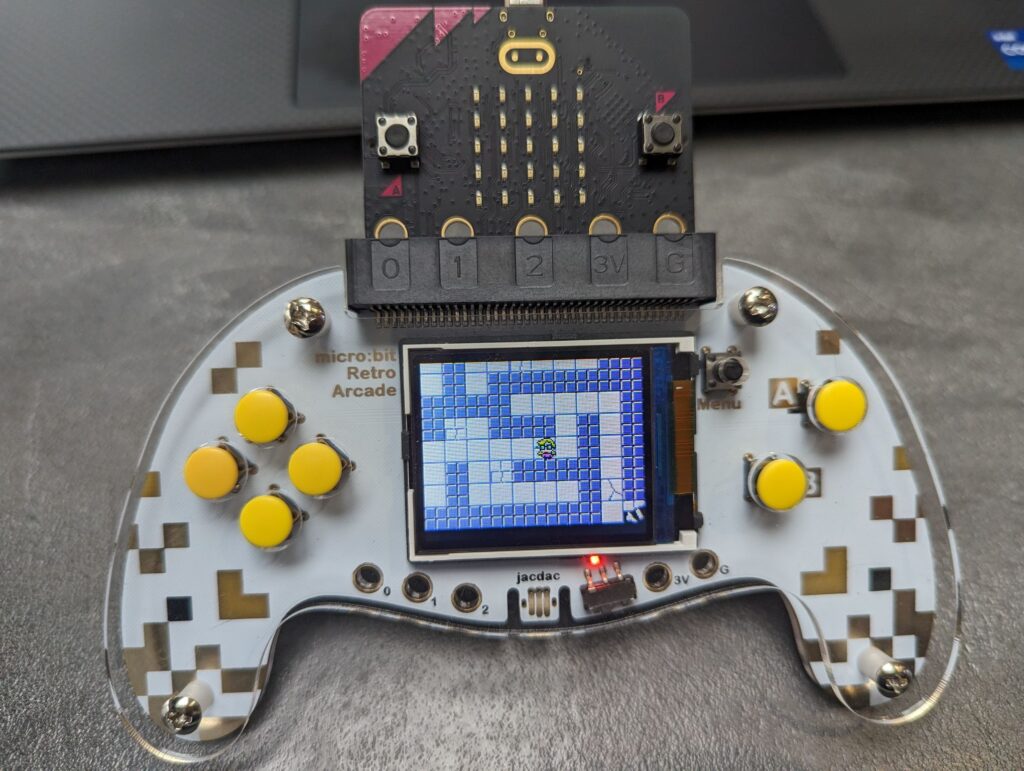
One thing I love about MakeCode arcade is that the games can actually be downloaded and played on a range of handheld gaming devices which the children love doing! I particularly like using Elecfreaks Retro Arcade as the game saves to a micro:bit which then plugs into the handheld device, effectively becoming the game cartridge, this makes it a lot easier for children to share devices and also provides opportunities for designing packaging for the games.
Struckd Studio
Struckd Studio is a 3D game development environment from Unity, I’ve written about this in more detail in a previous post here so won’t go into too much detail again.
The great thing about this platform is that you can build a game with no coding knowledge initially but take it to the next level using the node-based visual coding environment which uses conditions and actions to add functionality, a concept that will be familiar if you are used to using Kodu. Something that makes this stand-out is the huge array of built-in assets available so you can build almost anything you like, whether it’s a medieval dungeon crawler or a futuristic, space-aged alien adventure! There are even driveable vehicles and rideable animals included the list and you can start from a template or a blank canvas. In addition to running in the browser this also can be installed as an app on iOS and Android devices.
Construct 3
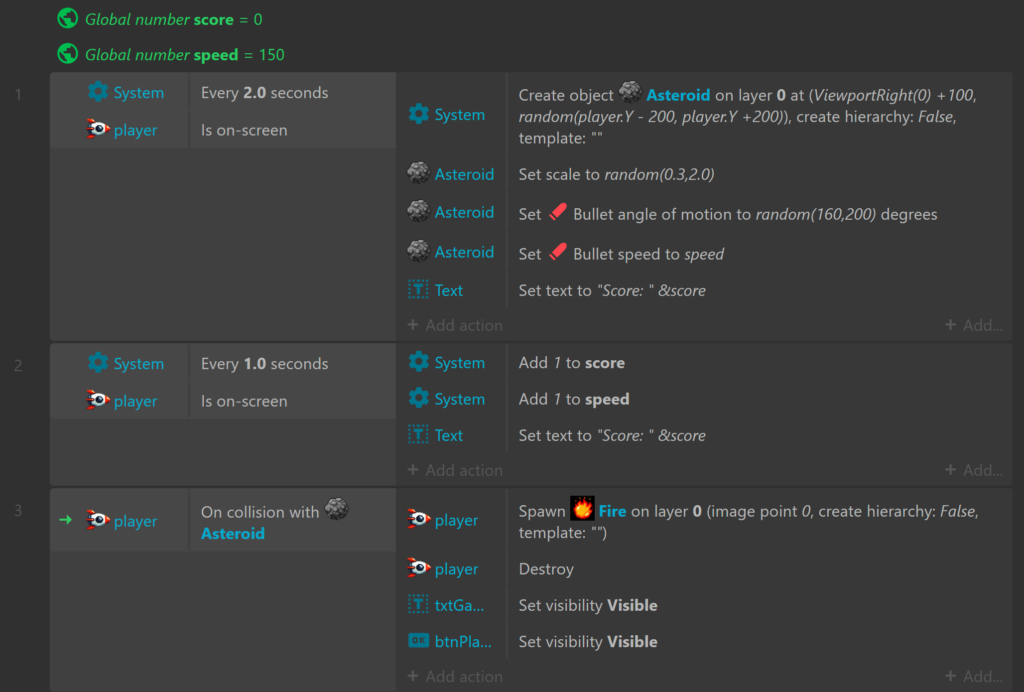
I learnt about Construct 3 at the Playful Learning Conference recently and I’ve been hooked ever since. Construct 3 is a 2D game engine that runs in the web browser. After following one of the many in-depth tutorials it was easy to get started, making a simple game. The game environment consists of a layout, which is your level and objects within the game. All objects have properties that you can change as well as behaviours you can add. For example, to get started you simply add a sprite to your layout and assign a movement type (platformer, multi-directional etc.)!
Although, Construct 3 is free there is also a paid version which may be worth considering if you reach the limits of what the free version can offer. The free version is limited to 50 events but so far I have not come close to hitting this limit and when making games in school I can’t see this being an issue at KS3. The other restriction the free version has is it is limited to 2 layers in your level so if you wanted to add some cool parallax effects this could be a limitation but in most cases this won’t be a problem.
Construct 3 allows you to import or create your own assets using the built-in editor. There is an asset store, but at the time of writing there were no free assets available in the store to help you get started, I believe this may be coming in a future release which will be really useful as this was my only niggle with recommending the software as many of the alternatives do have free assets to add directly which is handy from a teaching perspective. Don’t let this put you off, though, I highly recommend taking a look at the excellent free game resources from Kenney to help you get started. You could also use this as an opportunity to introduce AI image generation. All the sprites in my example below were generated by Gemini (mostly because I hadn’t discovered Kenney until after I made the example).
It’s straightforward to get started with coding on Construct 3, an Event Sheet is used to add conditions and actions for the gameplay, it’s simple and logical a bit like Kodu but much more advanced. If you wanted to really push students with their coding skills you can also add JavaScript and TypeScript to the game for additional functionality.
From a teaching perspective when you first load Construct 3 it can look a little overwhelming at first as there are lots of properties and options to tweak but many of these can be ignored initially. I would advise following a tutorial to get started if you’ve never used a game engine before, I started with this one.
If you are looking to introduce objected oriented programming with the use of classes and instances this will also provide a good introduction.
Once you have made a game, with the free version you can export as HTML 5, you could then host this on the school website or external platform such as itch.io or possibly a Google site. Here’s my example, hosted on itch.io:
Finally, Construct 3 has a cloud storage option which links to your Google Drive, OneDrive or Dropbox, depending on what you use in school so students can access their files from anywhere. One thing I noticed is it doesn’t seem to autosave so it’s important to educate your students on the need to save regularly (although this can be turned on in the settings).
GDevelop
GDevelop is a 2D and 3D game engine that is very similar to Construct 3 in many ways. A particularly nice feature is that you can get started with a template rather than starting from scratch which is a nice addition, I also like that you can make 3D games too, although I found the editing view for this a little confusing as the layout editor displays the objects on a 2 dimensional plane which is different to other 3D game engines I’ve used in the past. In school I would probably stick with 2D games initially.
There is a range of built-in tutorials available which go through various techniques in games that have already been created. It would be nice to also have one for creating a game from scratch as well, similar to the one I used in Construct 3. The main tutorials on their website link to YouTube videos which may be difficult to access in schools, although, when I dug a little deeper I did find some more in their wiki.
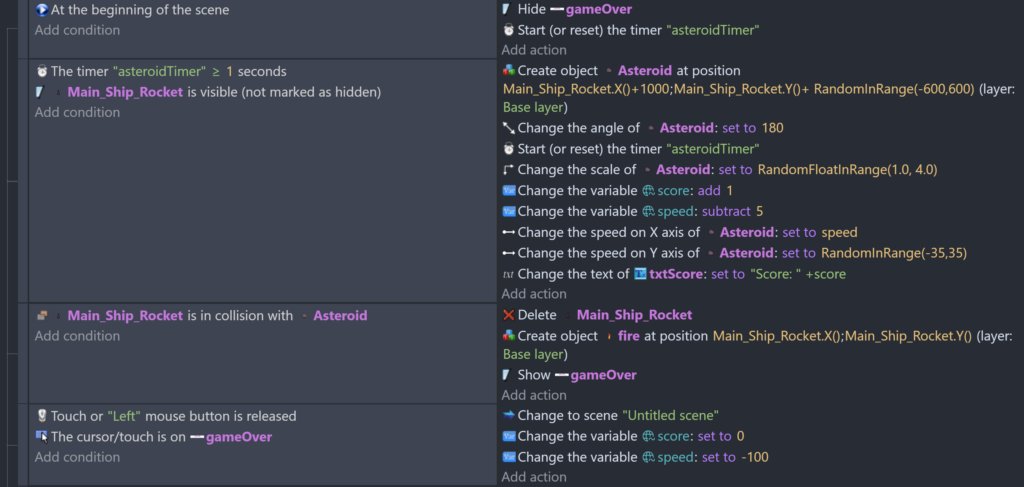
The programming aspect is basically the same as Construct 3, add behaviours to objects then using the event sheet to set conditions and actions. Again, you can also add JavaScript programming. Unlike Construct 3, the free version has no limits on the number of events you can use and also appears to have no limit on the number of layers either.
The main limitation with the free version is that it only allows 3 cloud projects to be saved which is a real drawback for me as I would want students to create a range of minigames to cover a variety of techniques. I had a go at making the same space game as I made in Construct and MakeCode Arcade. GDevelop has a range of assets, many of which are free, that can be used in your game straight away which was really helpful when putting together a basic example. I found GDevelop slightly more complicated to use when creating my space game, for example setting events to happen after a given amount of time required creating and setting individual timers rather than just having a condition of “every 2 seconds . . .” Looking through the list of events and behaviours it would appear that GDevelop allows you to add more complicated functionality to games, which is great for budding game developers but not necessarily required from a school perspective. GDevelop also allows you to export to HTML 5, just like Construct 3, but also exports to desktop, Android and iOS (these are paid features in Construct 3). Again, I downloaded as HTML 5 and hosted my game on itch.io:
I really liked both GDevelop and Construct 3; whichever one you choose, you’re going to have a positive game development experience, it was tricky deciding which one to recommend overall but as GDevelop’s free version only allows you to save three cloud projects, I felt this may be problematic in schools and with Construct 3 being slightly easier to use, that helped sway my recommendation.
Godot Engine
Godot is a completely free and open source game engine for developing both 2D and 3D games. It runs in the browser as well as having a desktop application. This sits as an open source alternative to the big names like Unity and Unreal Engine.
As this is a professional-level game engine, it is a lot more complicated for beginners, and students would ideally need an understanding of object oriented programming to get started developing their own games in Godot. If you have students in KS4 and KS5 who want to take their coding skills to the next level and potentially go into game development in the future they should definitely check out Godot. If they have used the platforms mentioned earlier they will be familiar with the interface somewhat in that it follows the same approach of having objects which are added to the scene with properties that can be tweaked. The key difference is with the programming; instead of a general event sheet with conditions and actions, these need to be coded individually per object (node), typically by adding a script to each object to apply actions. From what I have seen in the past, this is generally how advanced game engines work, Roblox Studio, for example is similar. Godot has its own scripting language, GDScript, which is similar to Python. If you’re looking to get started with Godot check out their documentation which takes you step-by-step through making your first games. I haven’t had chance to work through the tutorial myself so haven’t managed to create a Godot version of my space game yet!
I haven’t included any Godot alternatives as they all require installation rather than just running in the browser but I’m hoping to investigate these at a later stage. Let me know if this is something you’d be interested in.
Finally, Some Fun Game Making Activities
I hope you’ve found this post interesting! If you’re planning to get started with creating games in the classroom here are some fun and simple ideas you could try:
- Asteroid dodging (like my example above)
- Fishy
- Flappy bird
- A simple Mario-style platform level (collect objects, avoid enemies, reach the flag)
- Any retro arcade games such as Breakout, Pacman or Pong
Some tried and tested methods for teaching coding that you’re probably familiar with are PRIMM and Parson’s Code, which are both great ways to get children creating their games quickly with a smaller learning curve:
PRIMM
- PREDICT – Look at some of the code or an event sheet for a game and predict what they think will happen
- RUN – Run the game to see if their predictions are correct
- INVESTIGATE – Discuss, annotate and explore the code or event sheet
- MODIFY – Change the behaviour of parts of the game and/or add some additional functionality
- MAKE – Use the skills learnt to create their own game
Parson’s Code
Give learners the code blocks needed for a simple game but not joined together, this would be easier to implement with MakeCode or Scratch
The way you separate an engine choice from the learning goal is very useful. A low-friction browser prototype can help students test a game loop before committing to an engine; at OpenGame, we have found that keeping the first experiment deliberately small makes iteration part of the lesson. Thanks for putting the classroom trade-offs so clearly.